
This is a title
How to Use Quick Access Links
Watch the tutorial
Why this matters
Your home page can show a lot of dashboards, and it's easy to lose time hunting for the one you actually need. Quick Access lets you pin up to four dashboards right to your home page, so you land exactly where you want to be every time you log in.
Who it's for
- Anyone who wants to spend less time navigating and more time in the data that matters to them
- No prior experience with the platform is required
Step-by-step
Select up to four dashboards for Quick Access
On your home page, find the Quick Access section. From here, choose up to four dashboards from the Dashboards section to pin — for example, the California School Dashboard, CAASPP, CAST, or ELPAC.
Once you've made your selections, click Add to Homepage.
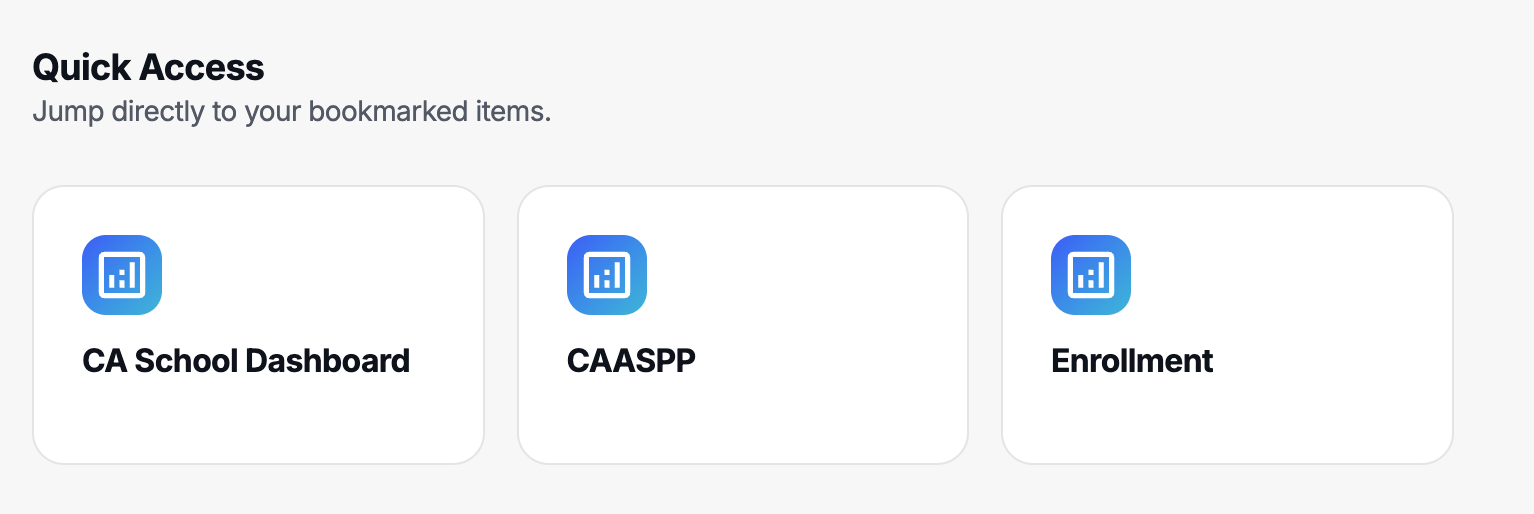
Add a note to a pinned dashboard
Hover over any dashboard you've pinned and click Edit to add a short description — for example, a note reminding yourself what that dashboard covers or how you use it.
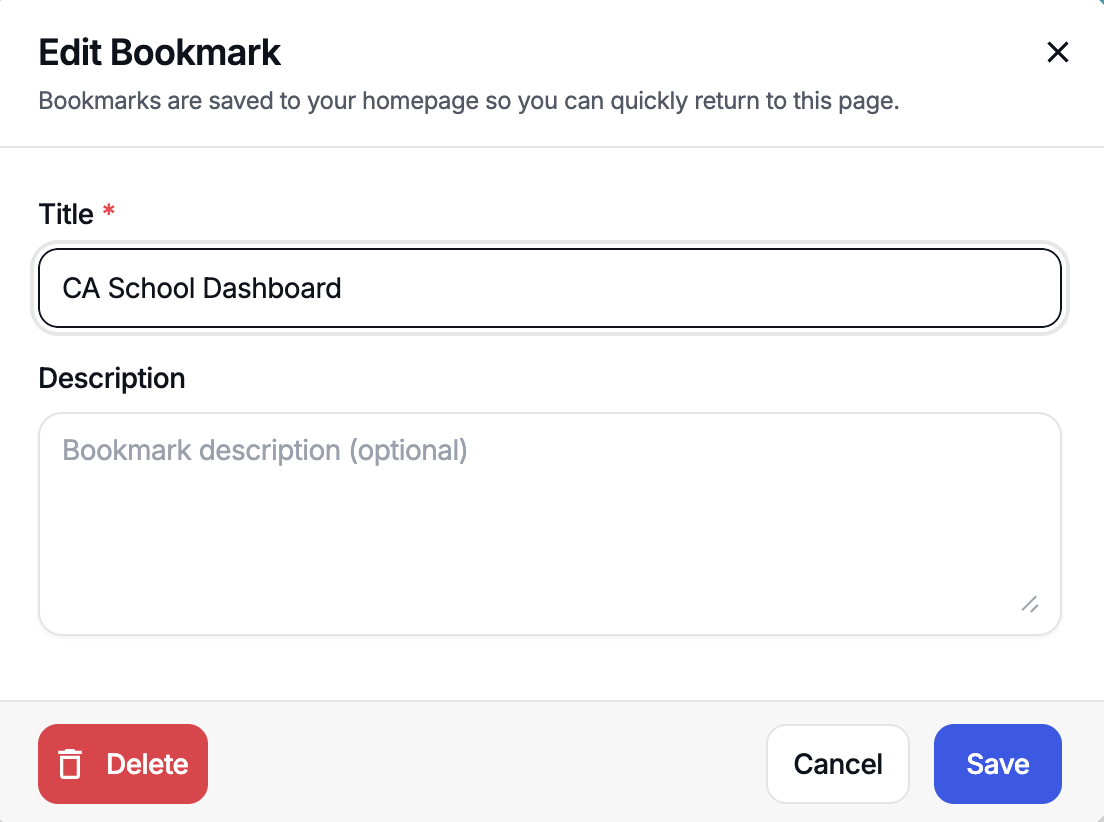
Remove or swap out a dashboard
To remove a dashboard, hover over it and click the X.
To change your whole selection, click Change Selection and choose different dashboards — for example, swapping out CAST for Enrollment.
Know that Quick Access is specific to each workspace
Your Quick Access selections aren't shared across workspaces. If you move from one school's workspace to another, you'll see a different set of pinned dashboards — because what you have access to, and what you've chosen to pin, changes from workspace to workspace.
Tip: This is useful if different schools or sites care about different metrics — you can isolate what matters at each one instead of seeing the same fixed set everywhere.
Was this article helpful?
What was missing?