
This is a title
How to log in to Parsec Clarity
Watch the tutorial
Why this matters
Logging into the full Clarity platform has one extra step Clarity Lite doesn't: choosing your organization and whether you're heading into Clarity or Real. Knowing that up front means you land in the right workspace the first time.
Who it's for
- New Clarity users signing in for the first time
- Anyone with access to more than one organization or product (Clarity and Real) who needs to pick the right destination
Step-by-step
Get to the login page
There are two ways in:
- Go to parseceducation.com and follow the login link, or
- Go straight to app.parseceducation.com — this takes you directly to the login page

Sign in
Choose your method:
- Log in with Google — if you're a Google user, this is the quickest route
- Email and password — use the credentials you set up
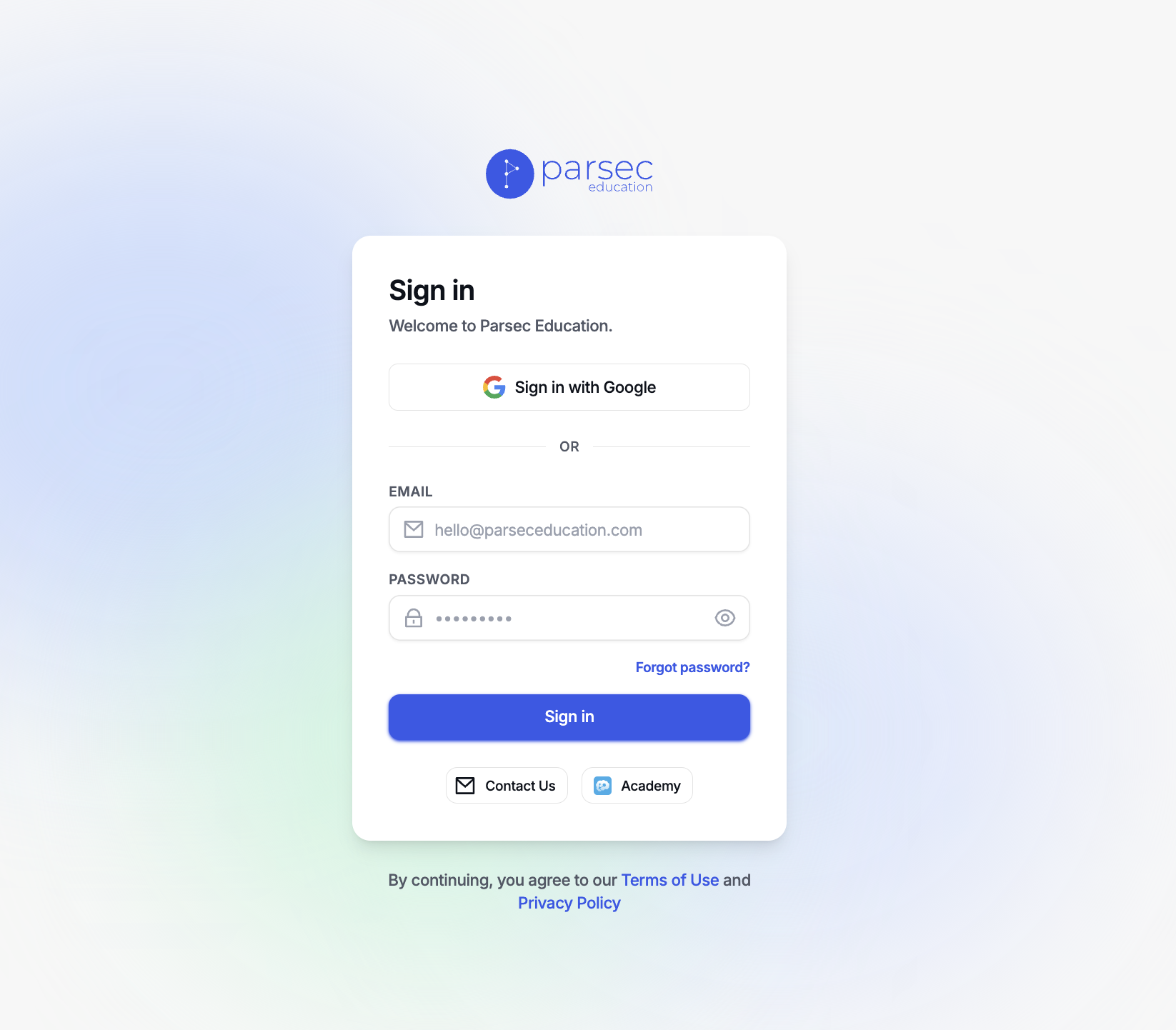
Forgot your password? Click the reset link, enter your email, and Parsec sends you an email with the steps to set a new one.
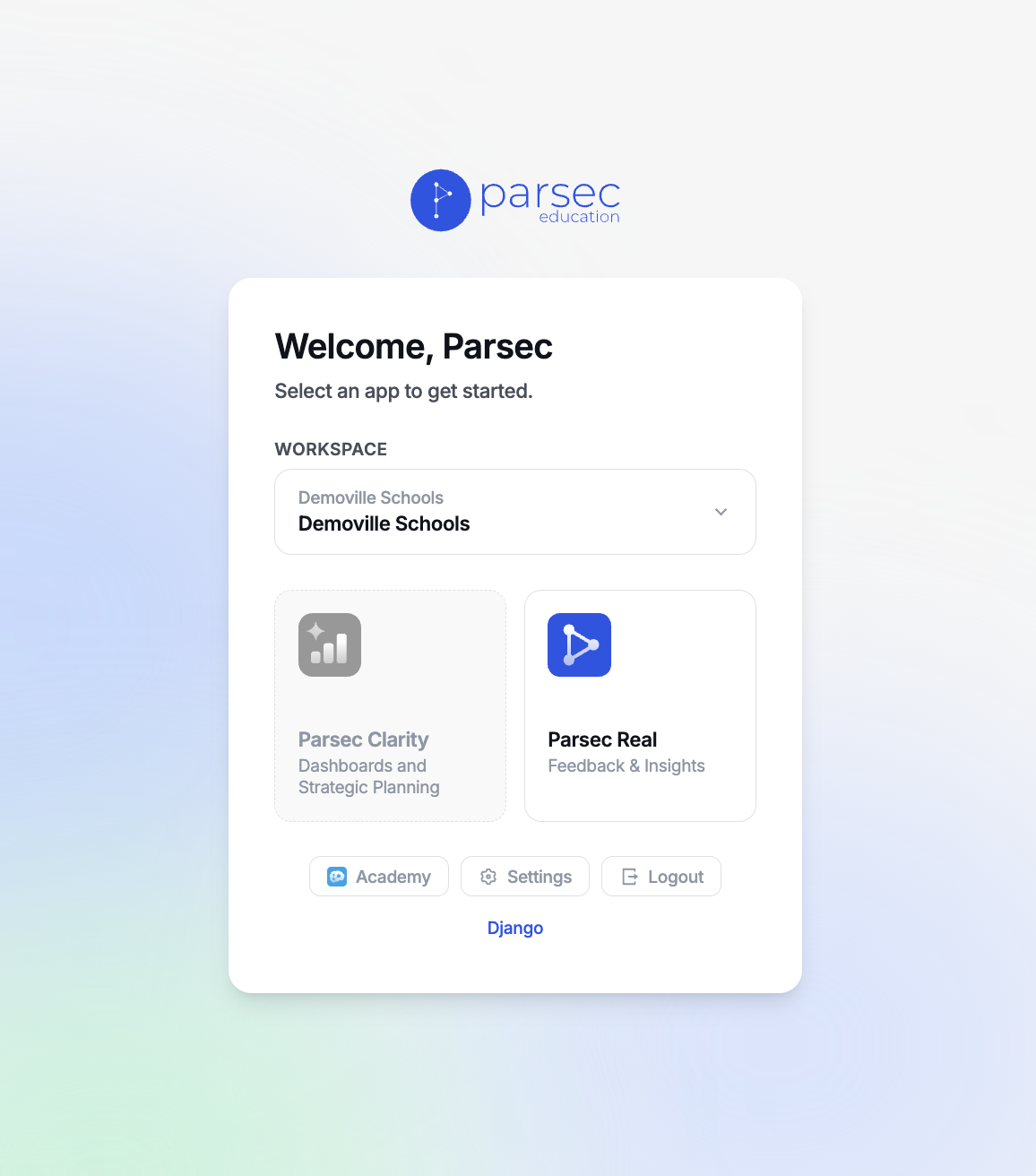
Select your organization and choose Clarity or Real
You'll see up to two options: Parsec Clarity and Parsec Real. Whichever you don't have access to is grayed out — so if you're a Clarity user only, Real won't be selectable, and vice versa. Click Clarity to continue.
Confirm you're in the right place
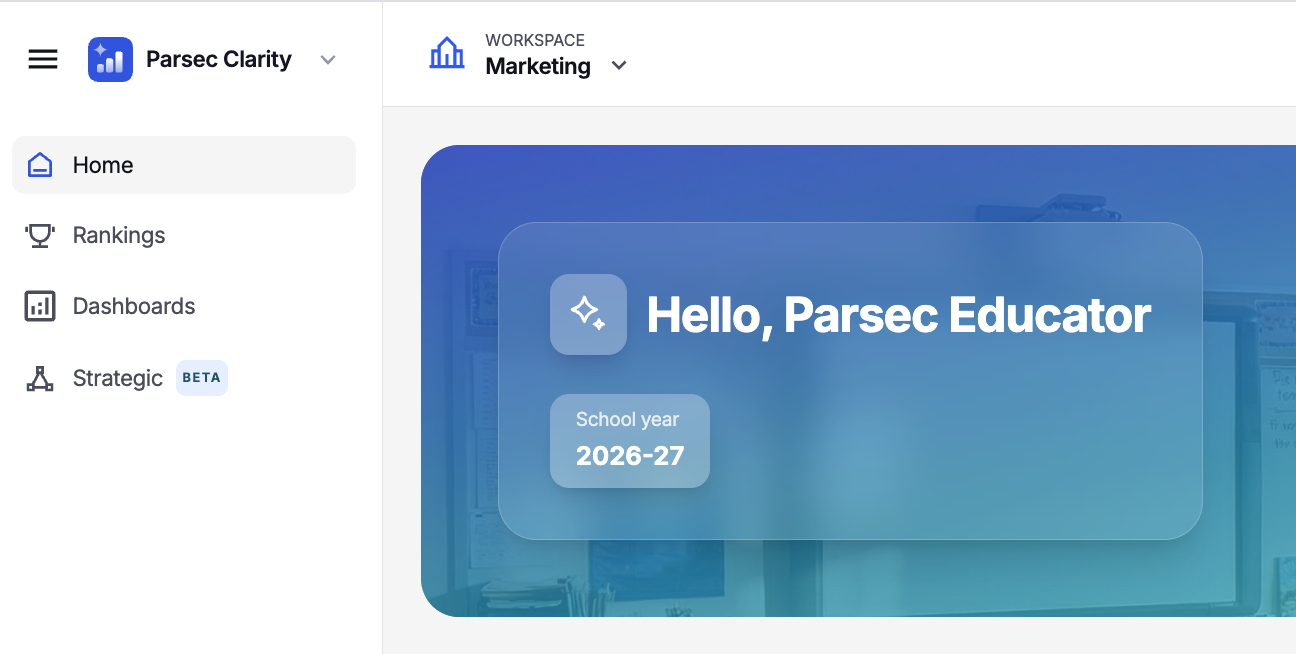
Two quick checks confirm you've arrived:
- Your name appears in the top corner
- The workspace matches the organization you selected (e.g., if you chose Parsec Academy, that's what you'll see up top)
Any dashboards you've set up will also appear here.
Was this article helpful?
What was missing?