
This is a title
Understanding Your Workspace: What's Tied to You vs What's Shared
Watch the tutorial
Why this matters
If you work across more than one workspace — or your organization has more than one — it's easy to get confused about why your home page, dashboards, or strategic data look different depending on where you're logged in. This article breaks down what's tied to you as a user versus what's tied to the workspace or organization you're in, so nothing catches you off guard.
Who it's for
- Anyone who belongs to more than one workspace or organization
- Admins managing users and permissions across workspaces
- No prior experience with the platform is required
Step-by-step
Know what's tied to your user, no matter where you log in
A few things stay consistent with you personally, regardless of which workspace you're in:
- Permissions — what you have access to, including whether you can add users and which workspaces you can move between
- Home page / Quick Access — the dashboards you've pinned, along with your name and background image
- Profile — your login information, including two-factor authentication (which we recommend enabling)
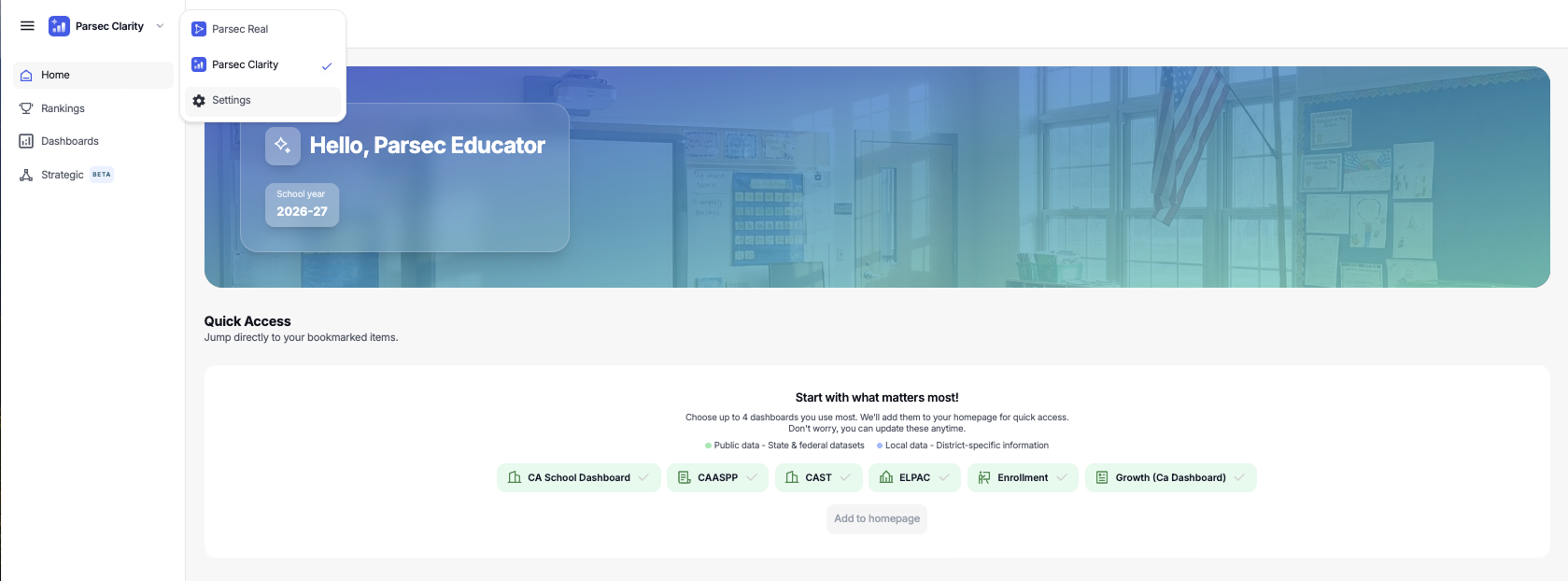
Understand the difference between an organization and a workspace
An organization can contain multiple workspaces. For example, an organization called Example Unified School District might have a core District workspace, plus a separate Elementary Pilot workspace underneath it. These are two distinct workspaces under the same organization — not the same thing.
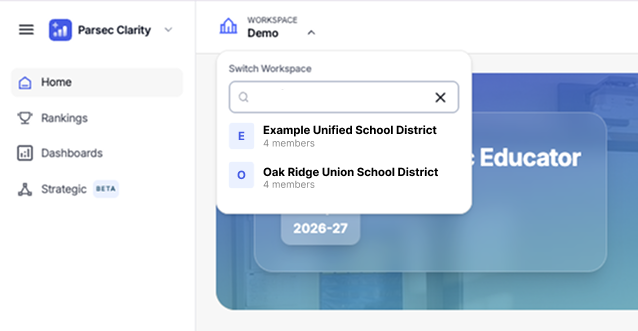
See how content changes depending on your workspace
Switching workspaces changes what you see in a few key places:
| Area | Behavior across workspaces |
|---|---|
| Quick Access / Home page | Changes based on which workspace you're in |
| Dashboards | Different dashboards are available depending on the workspace — one workspace might show 6 dashboards, another might show many more |
| Rankings | The same for everyone — it's a shared tool, not workspace-specific |
| Strategic | Specific to each workspace — a strategic plan uploaded in one workspace won't appear in another |
Check your role and workspace access in Settings
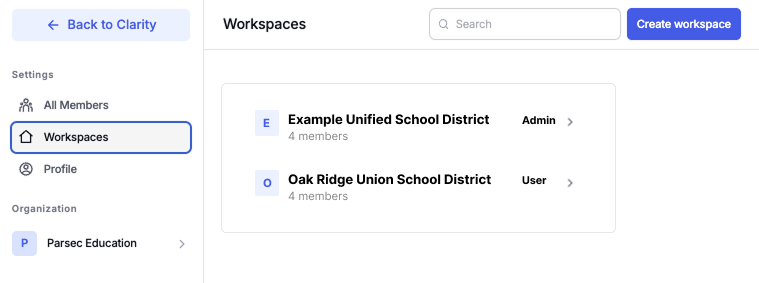
Go to the dropdown next to "Parsec Clarity" and select Settings.
- Admins can invite members, manage roles and statuses (active, pending, etc.), and see every workspace they're an admin for
- Non-admins can see who else is in the workspace, but can't invite anyone
- If you're an admin in some workspaces and just a user in others, Settings will show that breakdown clearly
- If you belong to more than one organization, you'll see all of them listed here too
Was this article helpful?
What was missing?