
This is a title
How to Use Clarity Lite (CA)
Why this matters
Most schools and districts already have access to state accountability data — but raw data alone doesn't tell you much. The real question is: how are you performing compared to systems that look like yours?
Clarity Lite helps you answer that. Instead of comparing your district to the state average (which isn't a fair comparison), you can filter down to school systems with similar enrollment size, student demographics, and community characteristics — and see exactly where you rank.
And when you find a system that's outperforming yours? You can reach out to them directly.
Plus, get your California School Dashboard data in a view that makes it easy to see where you're excelling — and where there's room to grow.
Who it's for
Clarity Lite is useful for anyone trying to understand school or district performance in context — not just in isolation. That includes:
- District and school administrators benchmarking performance ahead of board meetings, strategic planning cycles, or state reporting
- Curriculum and instruction leaders looking for high-performing peer systems to learn from
- Community members and advocates who want to understand how their local schools compare to similar ones across the state
No prior data experience required. If you can use a filter in a spreadsheet, you can use this platform.
Getting your bearings
A few signposts when you first log in:
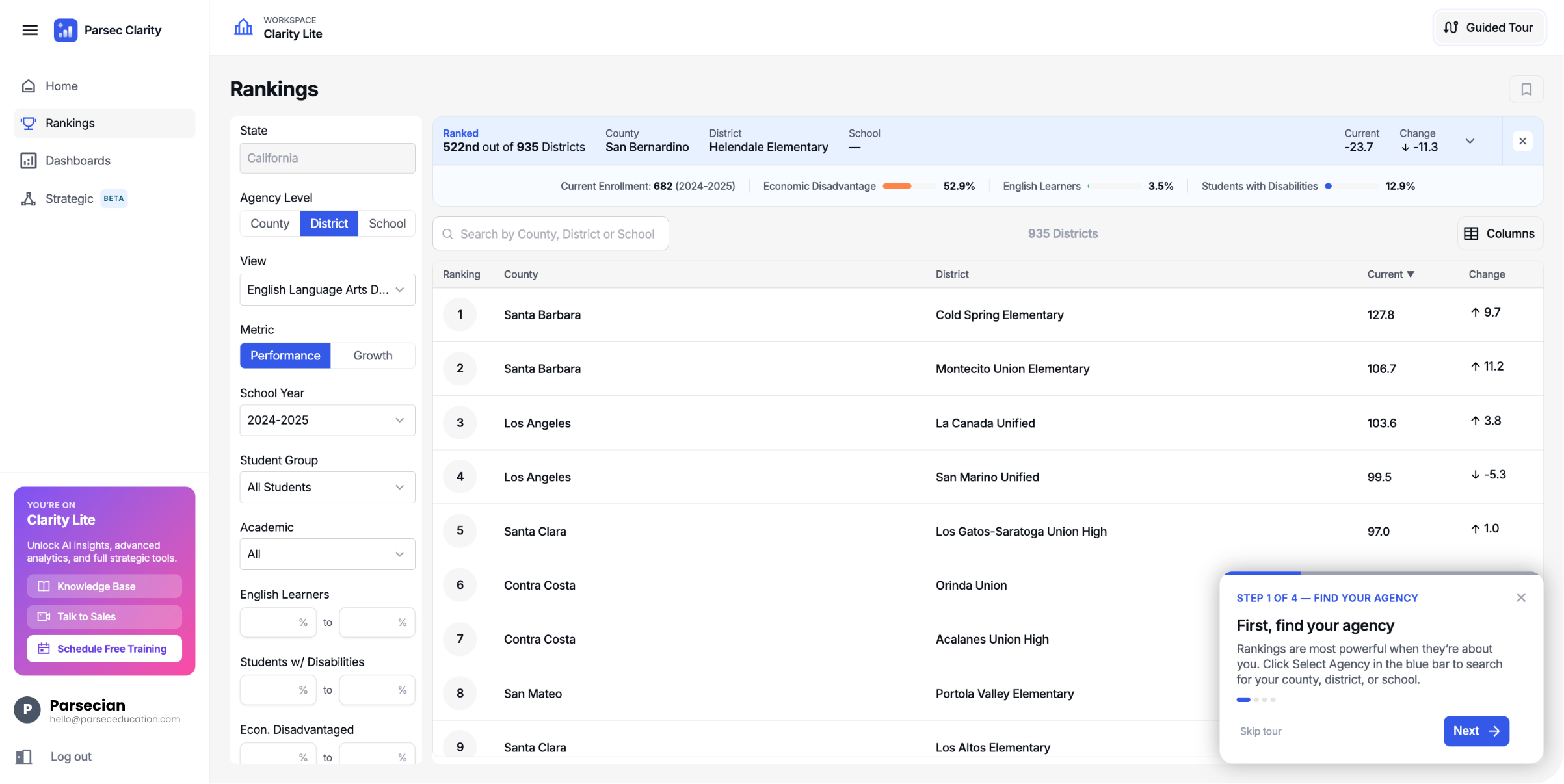
- Bottom-left purple box — confirms you're on Clarity Lite, with quick links to the knowledge base, a way to talk to sales, and a button to schedule a free training
- Bottom-right guided tour — a four-step walkthrough that highlights the essentials and then turns you loose. Lost it? Relaunch anytime from the Guided Tour button in the top-right
- Left navigation — Home, Rankings, Dashboards, and Strategic. You'll spend most of your time in Rankings
Need more room? Click the three-line icon next to "Parsec Clarity" in the top-left to collapse the navigation menu and give the data more space. Click it again to reopen.
Was this article helpful?
What was missing?